Algolia Search – PrestaShop module
Compatibility
PrestaShop 1.7.5 – 9.x
Download documentation
Algolia search.pdf
YouTube video
https://youtu.be/SDNb-IVWgtA
Goal Algolia Search replaces the default PrestaShop search with a high-performance solution, delivering faster results while reducing database load. It provides Back Office configuration, advanced product indexing and flexible synchronization management tools.
Benefits for Merchants
- fast and modern product search via the Algolia service
- search index synchronization management directly from the Back Office
- flexible indexing: a single global index or indices for each language
- ability to run updates via cron
Benefits for customers
- faster search, even with large product catalogues
- seamless product search via Algolia within the default store workflow
- more up-to-date results after product updates and index synchronization
- search adapted to the active store language (if Use language for index is enabled)
- stable performance thanks to background indexing via cron
Features
- Algolia integration via Back Office configuration
- automatic index updates on product changes
- manual synchronization from the Index tab
- batch synchronization via cron endpoint
Module settings
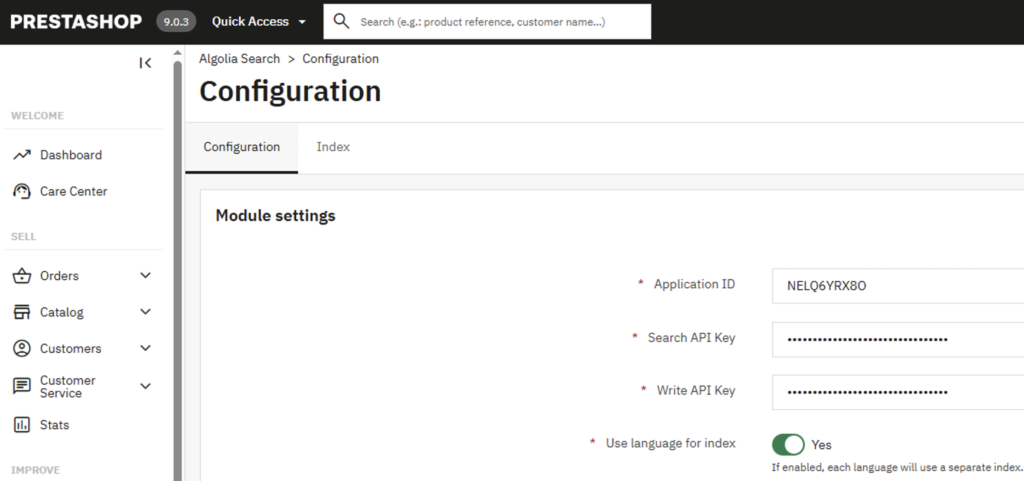
Configuration tab
To connect the Algolia service, you should add the following parameters to the settings:
- Application ID
- Search API Key
- Write API Key
- Use language for index (Yes/No) – if enabled, each language will use a separate index
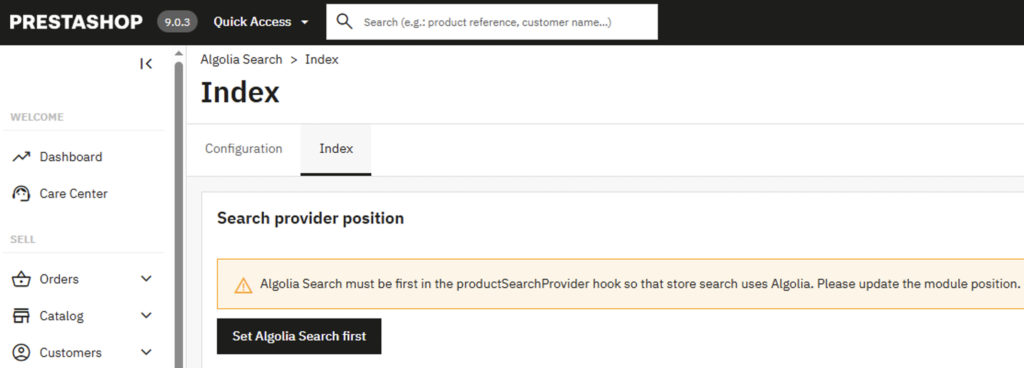
Index tab
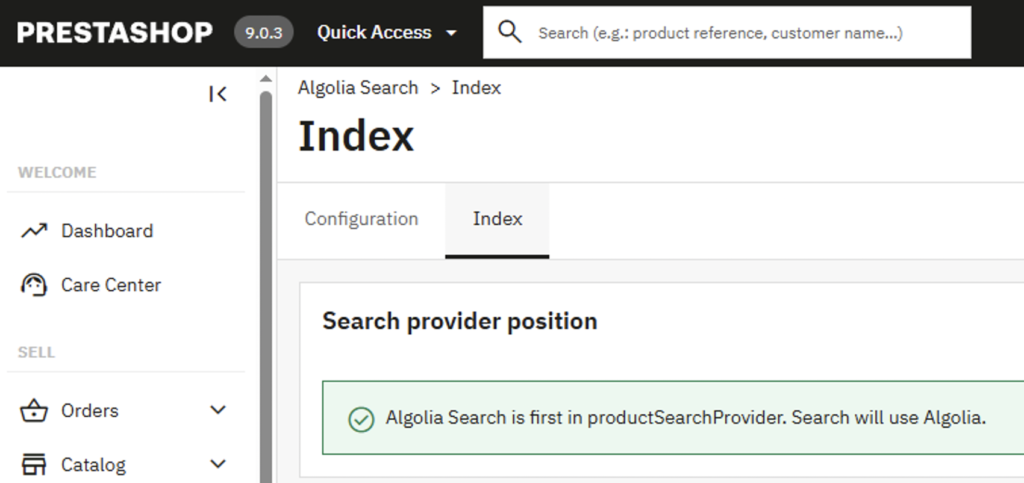
Search provider position – the block shows whether the module is the first in the productSearchProvider hook so that store search uses Algolia. If not, you can click Set Algolia Search first to update the module position.
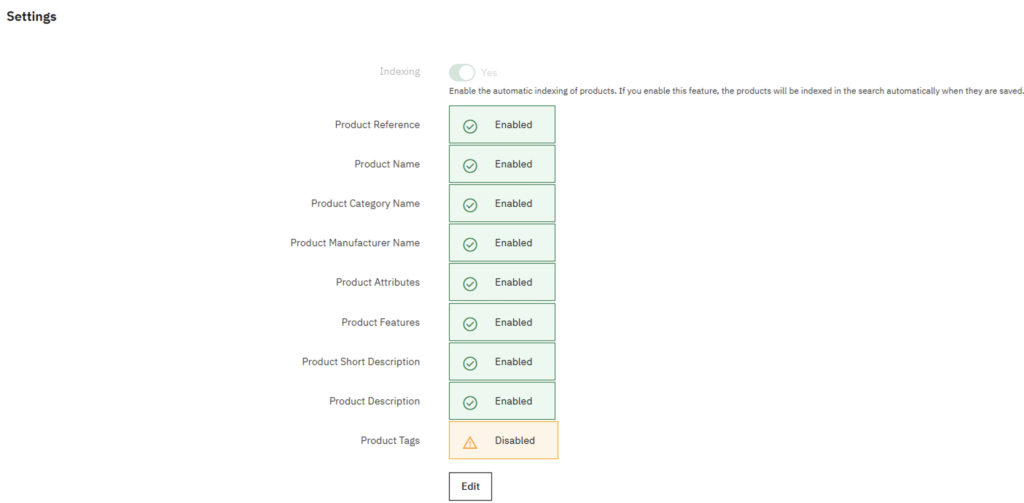
Settings section
- Indexing (Yes/No) – enable the automatic indexing of products. If you enable this feature, the products will be indexed in the search automatically when they are saved
- search field statuses (Enabled / Disabled)
- Edit – access PrestaShop search settings
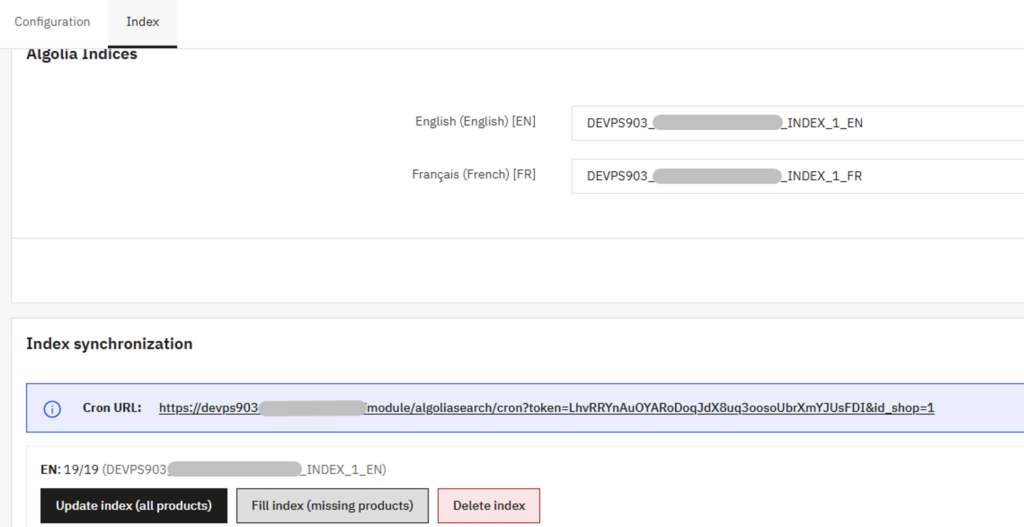
Algolia Indices section
If Use language for index = Yes, separate indices for each language will be displayed; If Use language for index = No, only one General index will be displayed. These are all separate indices and need to be created separately Create new 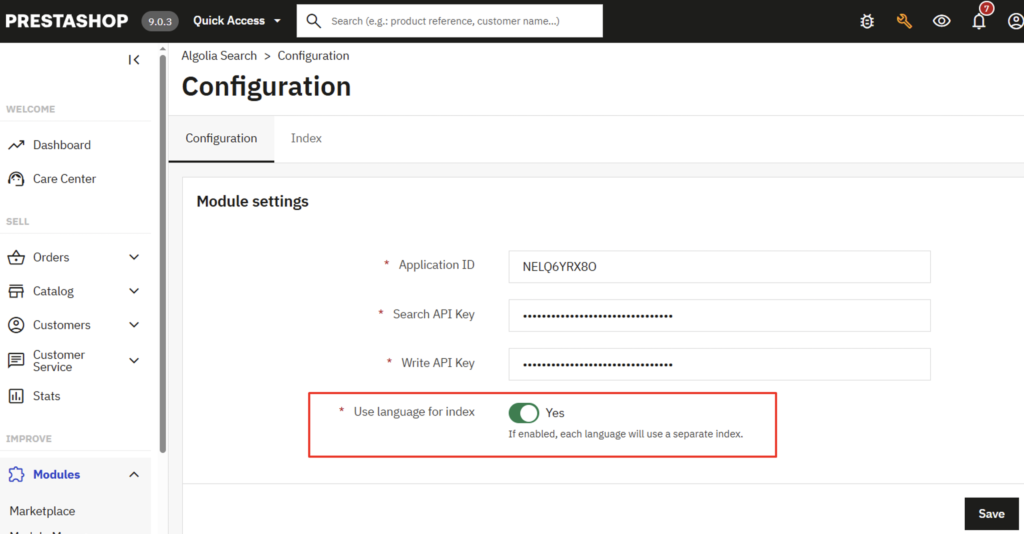
- separate indices per language (Use language for index = Yes);

- a single General Index (Use language for index = No)

Each selector allows you to:
- create a new index
- choose from existing Algolia indices

Index synchronization section
- Cron URL – this is Cron for background work. The module provides an endpoint for cron with token verification
- Update index (all products) – updates indices of all products (the module will resend data on all products to the Algolia database)
- Fill index (missing products) – sends data only about products that have not been added to Algolia before
- Delete index – removes all products from Algolia as well as the index itself
Other module features
Multishop
- the module works taking into account the logic of multishop
- cron supports launching for a specific store
- indexing and configuration use the context of the current store
Installation
- upload the module to the Back Office (Modules > Module Manager)
- click the Install
- complete the Configuration
- configure indices in the Index tab
- if necessary, start the first synchronization manually
In conclusion, how to get Algolia keys
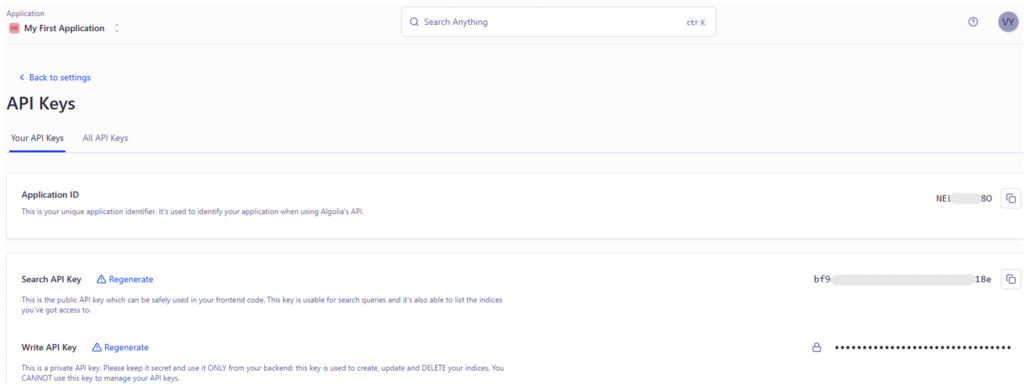
- firstly, log in to your Algolia account
- secondly, open the desired application (Application) in the Algolia panel
- Thirdly, go to section Settings -> Organization Settings -> Team and Access -> API Keys
- copy:
- Application ID
- Search API Key
- Write API Key
- paste these values in the Configuration tab of the module
- save the settings with the Save button